To harness the abilities of ChatGPT and of the B2B contact information database that you are using, activate the database’s plugin within ChatGPT.
From there, you can create filters — or ask ChatGPT to suggest ideal filters for you — to narrow your search. Specify the desired industry, company size, number of employees, or other relevant identifiers; ChatGPT will then return a list of potential leads and their contact information directly to you in the Chat.
Setting up the Plugin
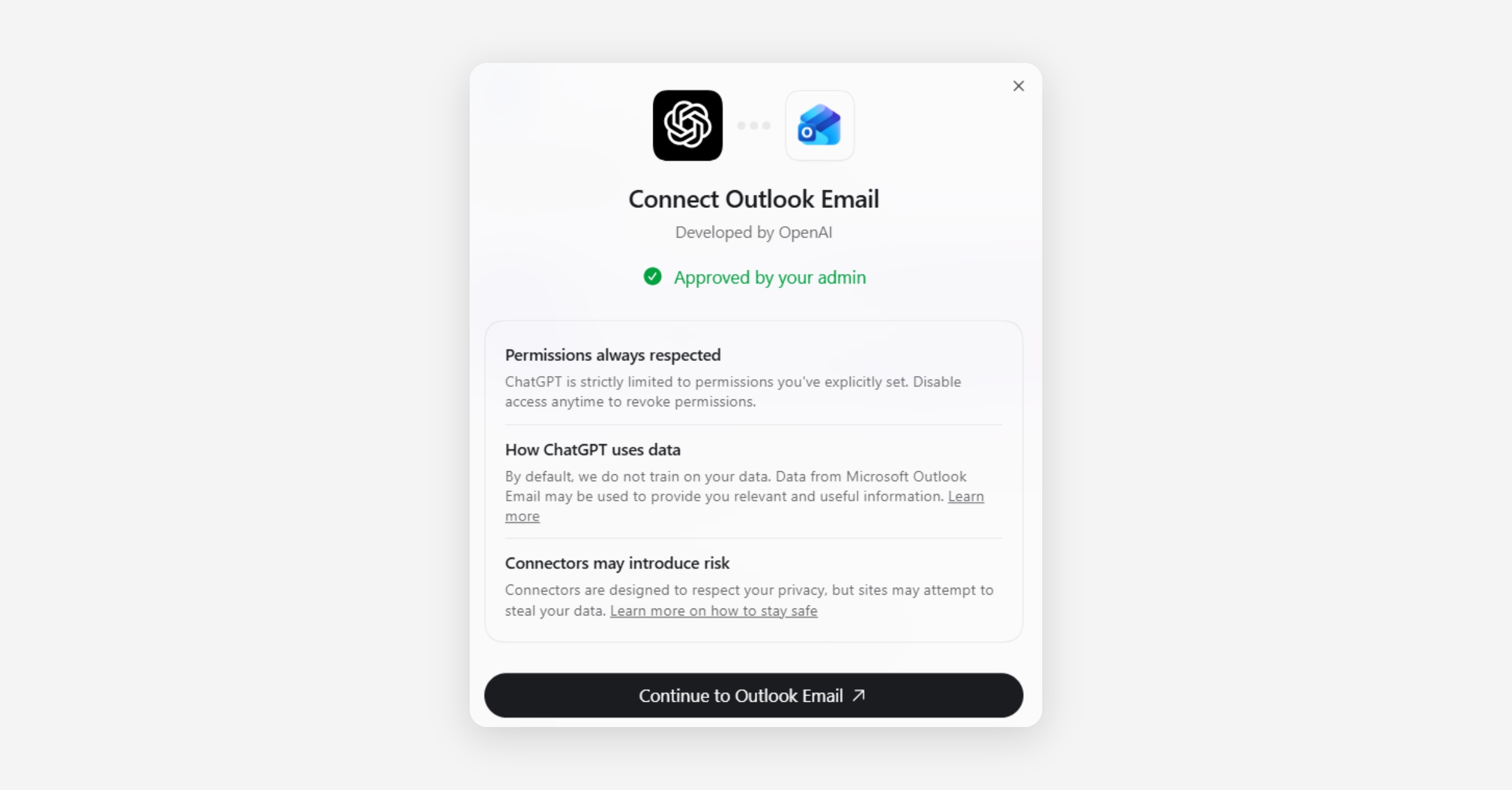
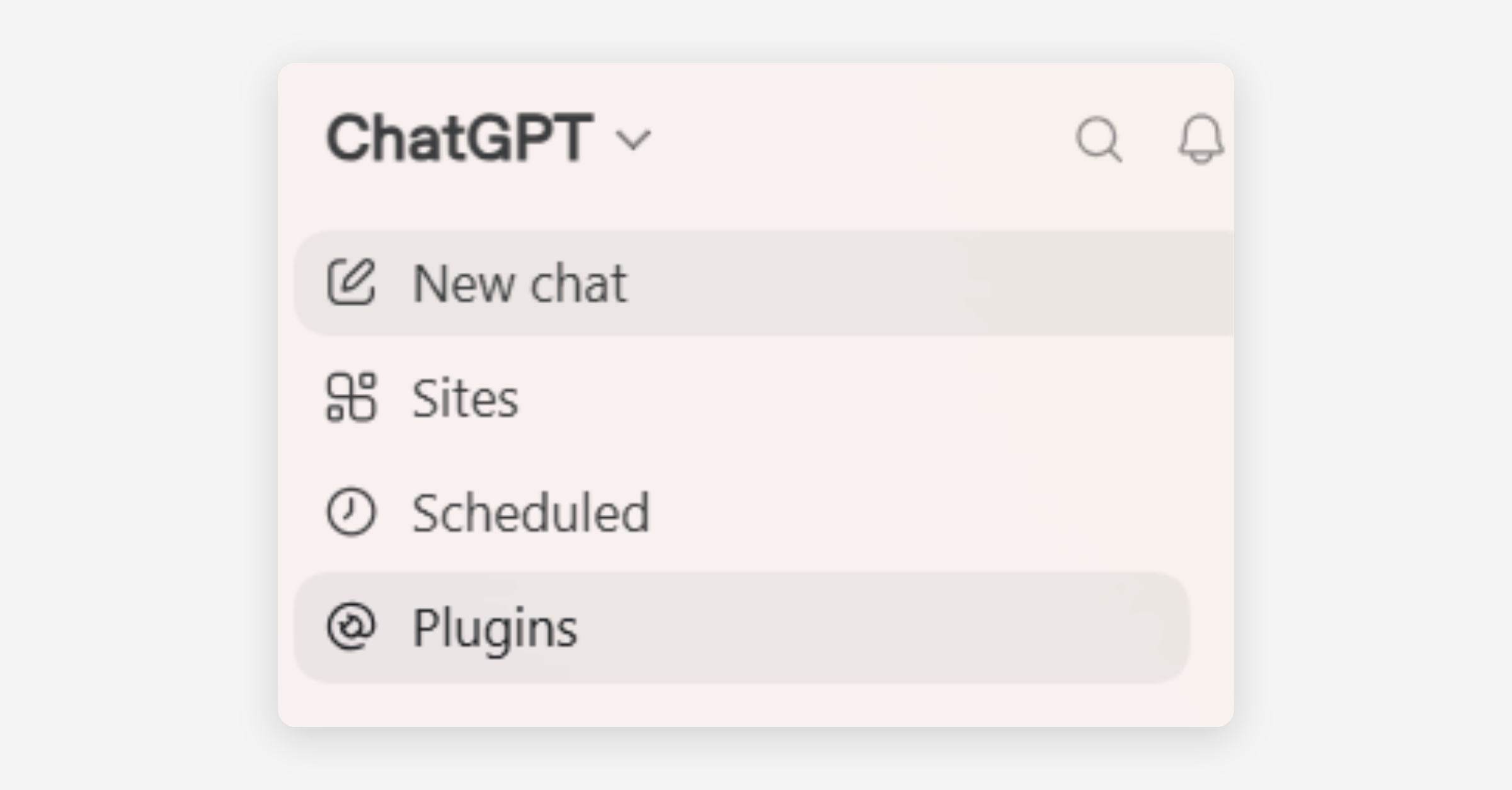
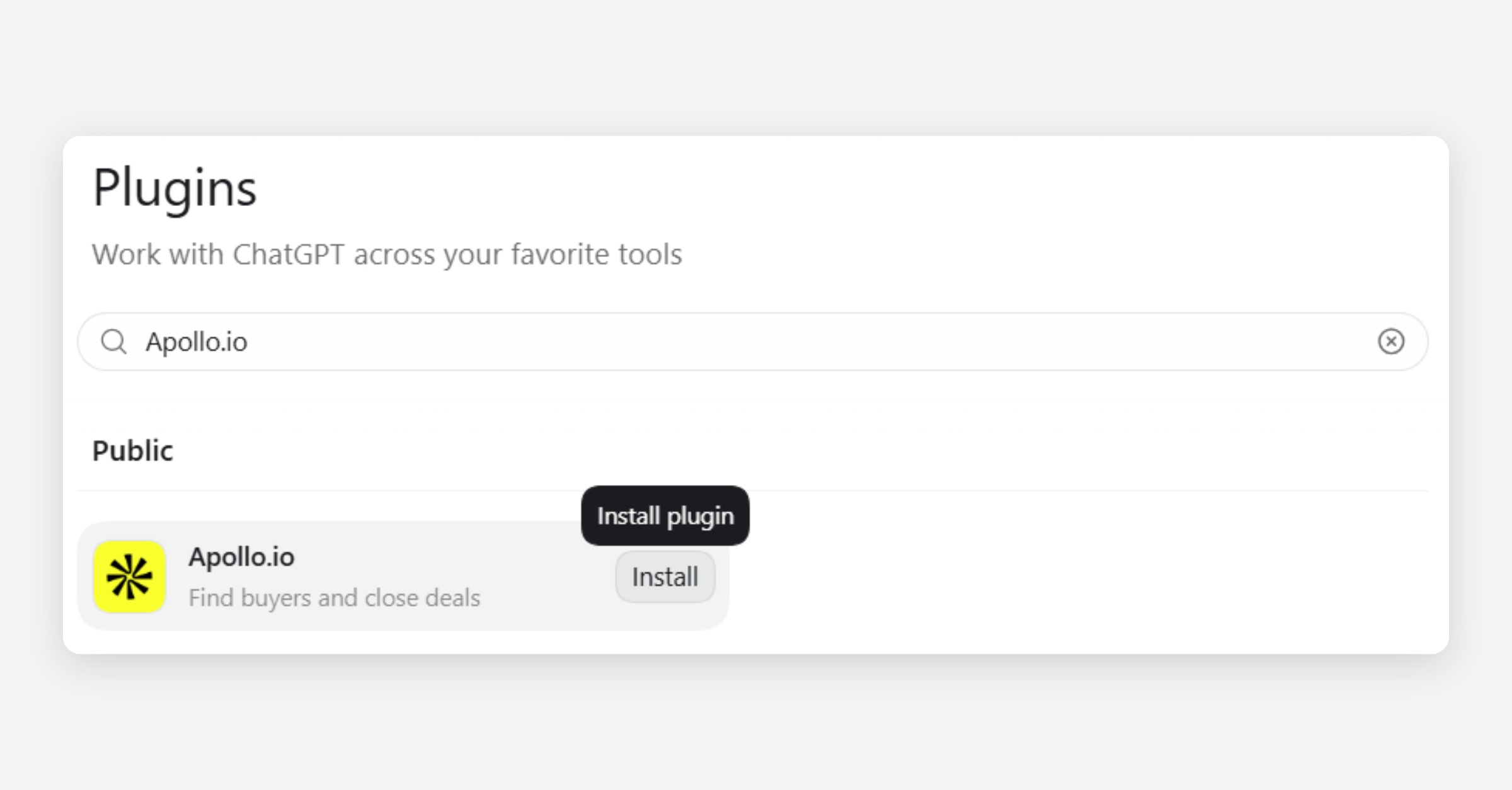
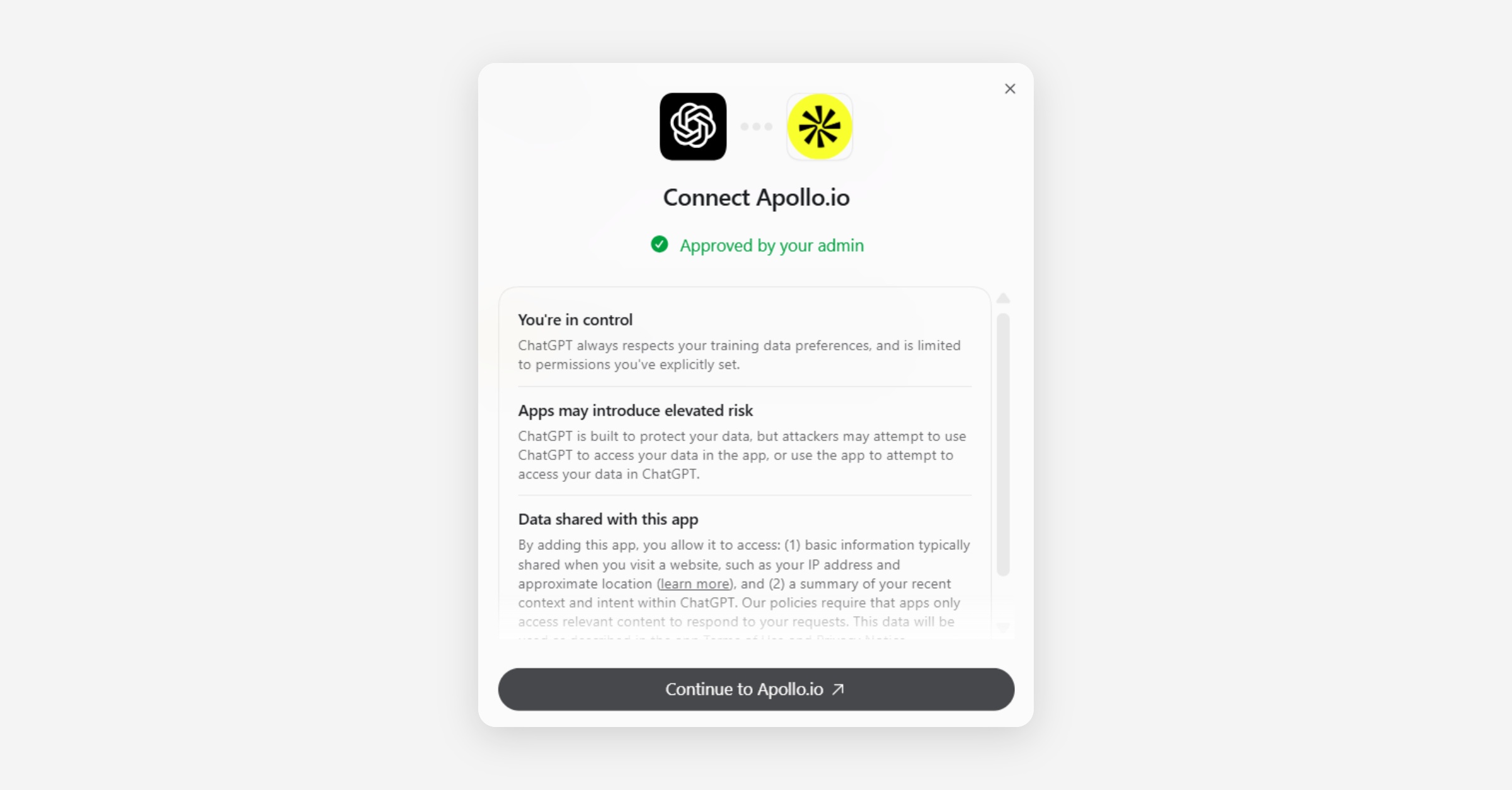
To set up the database’s plugin, select ‘Plugins’ in the left sidebar in ChatGPT (top image in group below). Search for your desired plugin using the search box, and select ‘Install’ next to the name of the plugin (2nd image in group below). In the menu that appears, select ‘Continue to [NAME OF PLUGIN]’ (3rd image in group below).
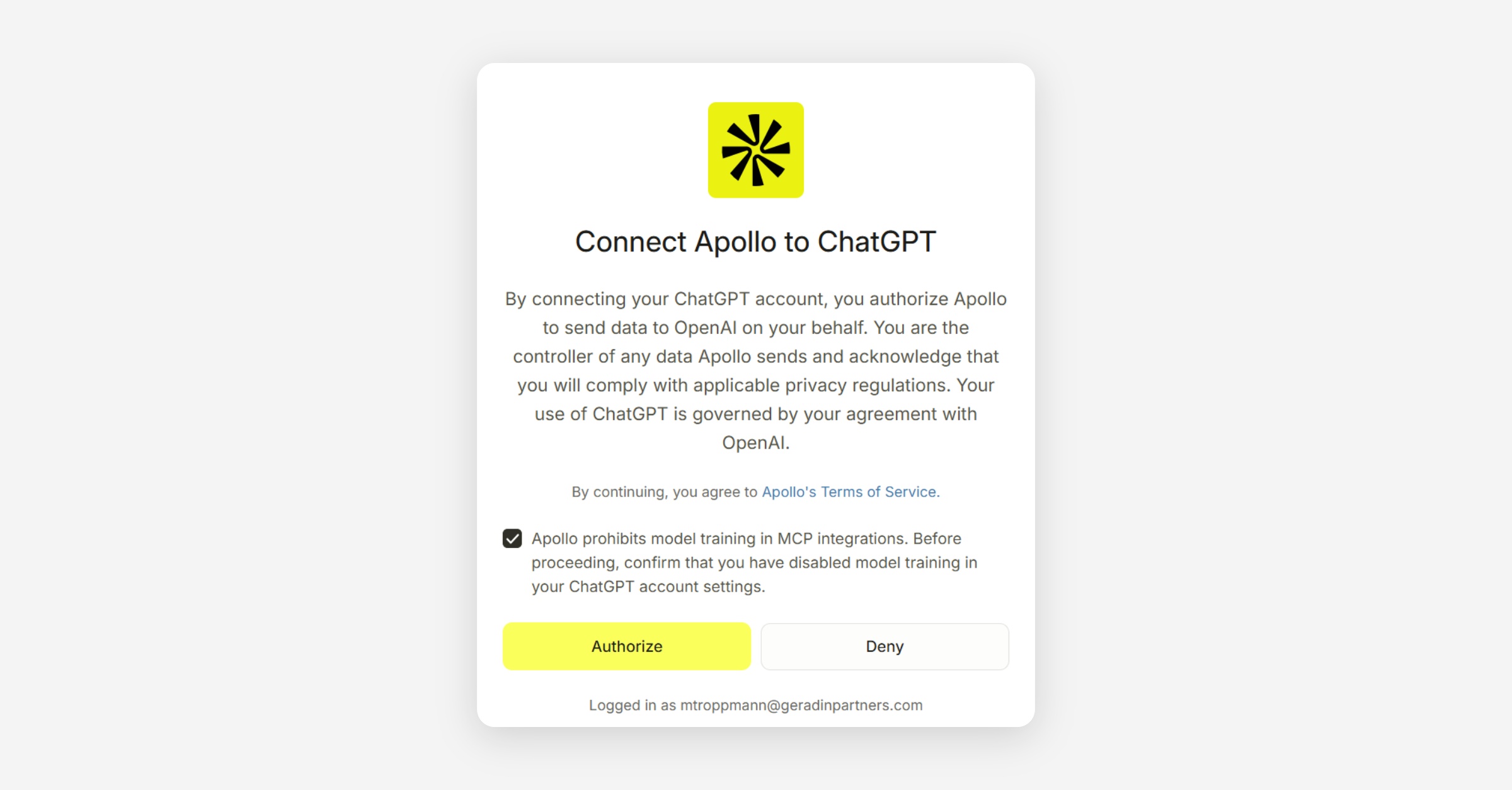
To complete the set-up of your plugin, accept the plugin’s terms of service and authorize the plugin (see bottom image in group below).
Understanding the Plugin
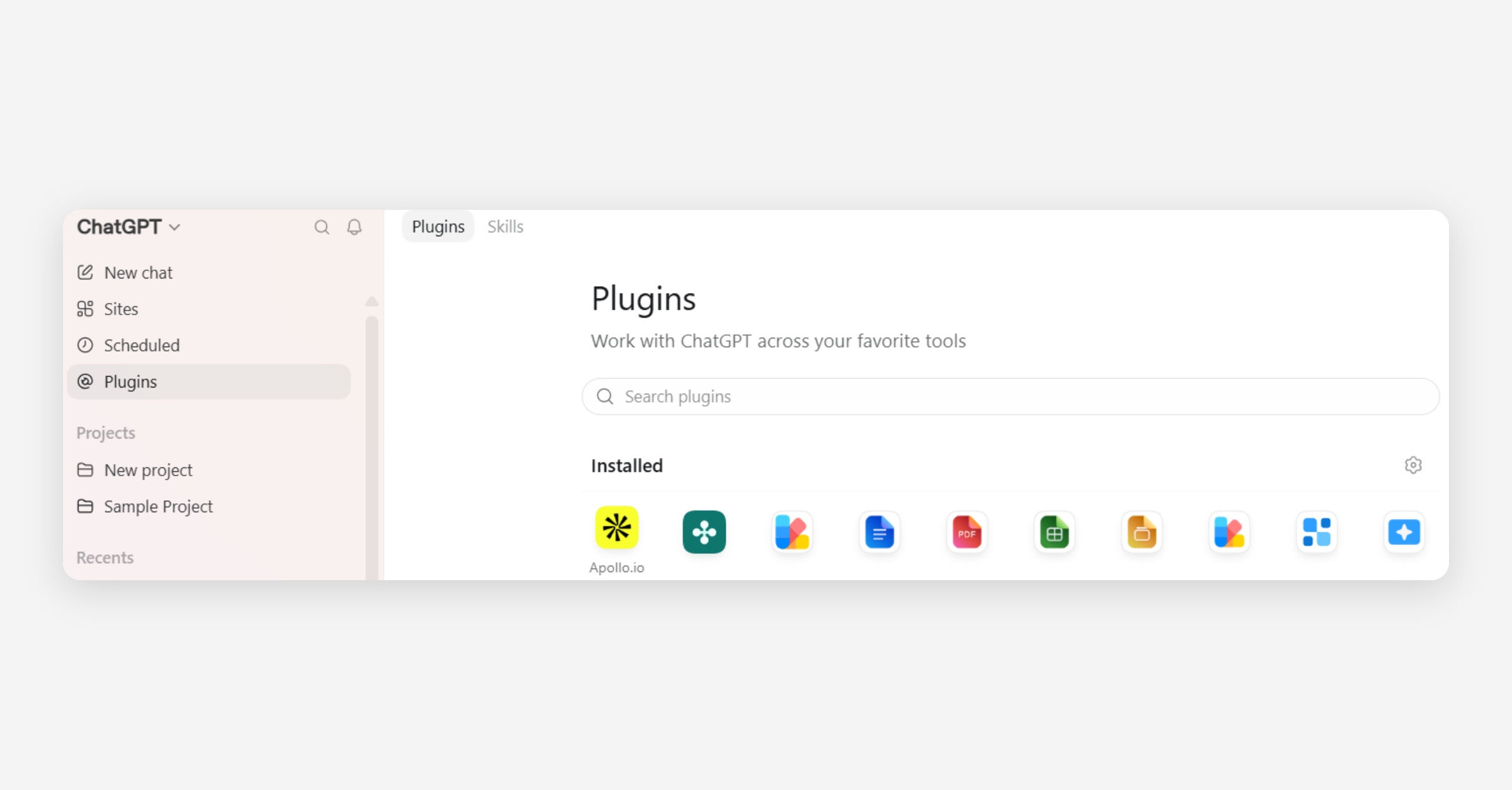
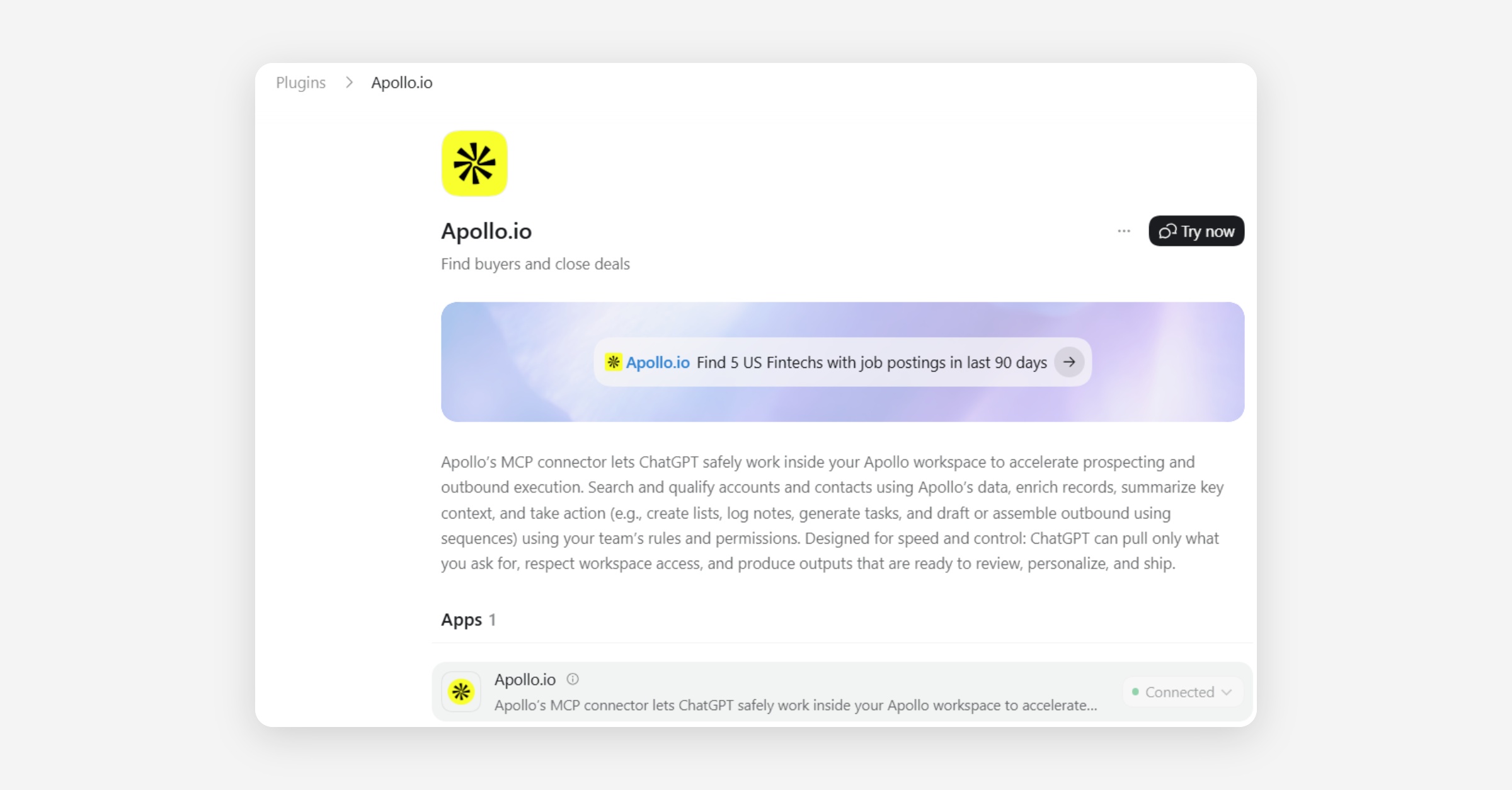
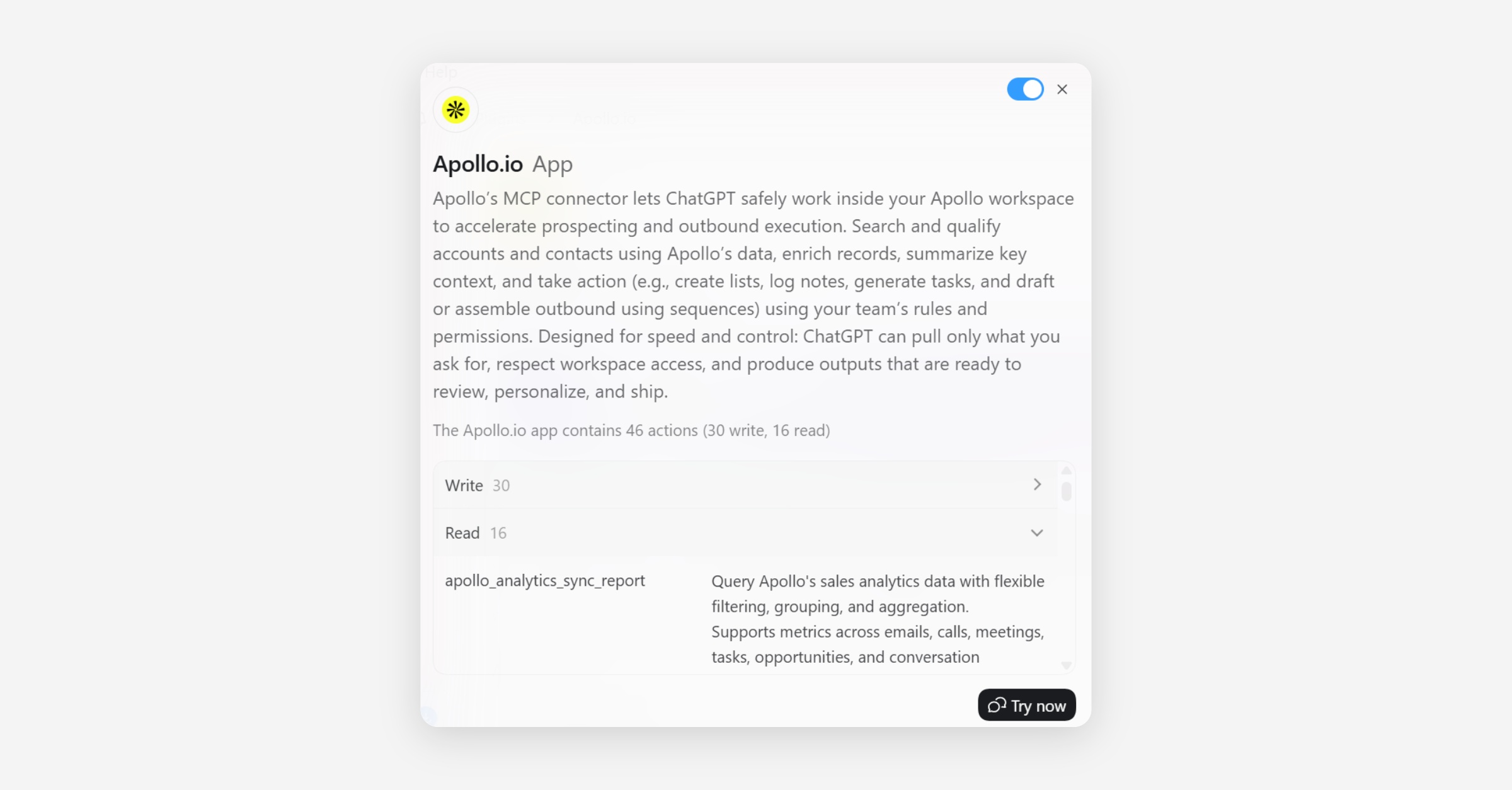
To understand the actions that an installed plugin can take, select the plugin from your list of ‘Installed’ plugins (see top image in trio below). On the plugin’s home page, select the relevant app within the ‘Apps’ list (see middle image in trio below).
The actions that an installed plugin can take are divided into two categories: ‘Write’ actions that can edit data and ‘Read’ actions that can only view data. To browse through the various actions a plugin can take, select the ‘>’ next to ‘Write’ or ‘Read’ (see bottom image in trio below).
Using the Plugin
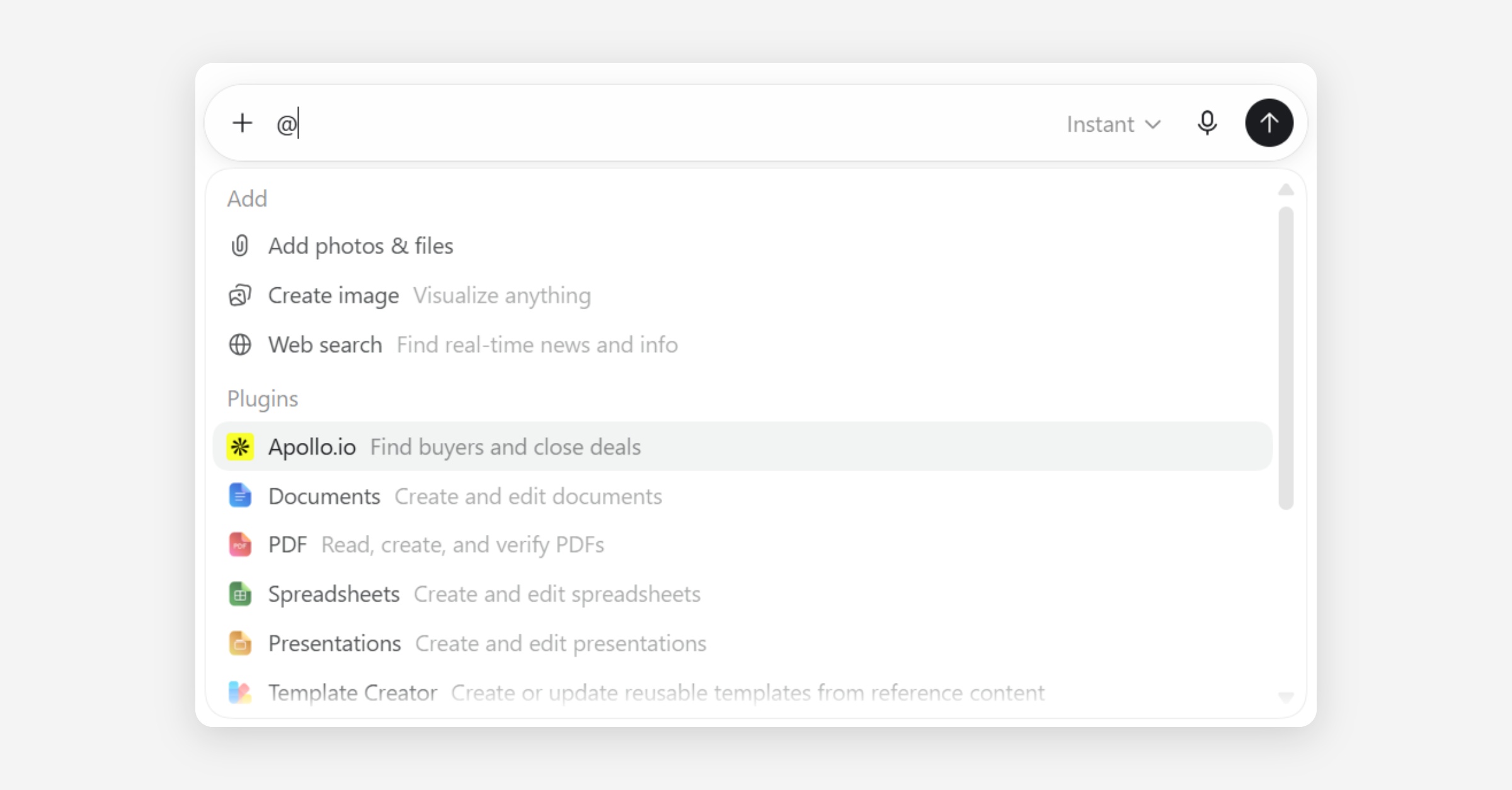
To use an installed plugin, click on the ‘+’ symbol on the left of the chat box. Alternatively, type ‘@’ into the chat box. Select your desired plugin from the list of installed plugins that appears (see image below). After the plugin has been selected, it will be active within your chat.
Requesting Access to Unauthorized Plugins
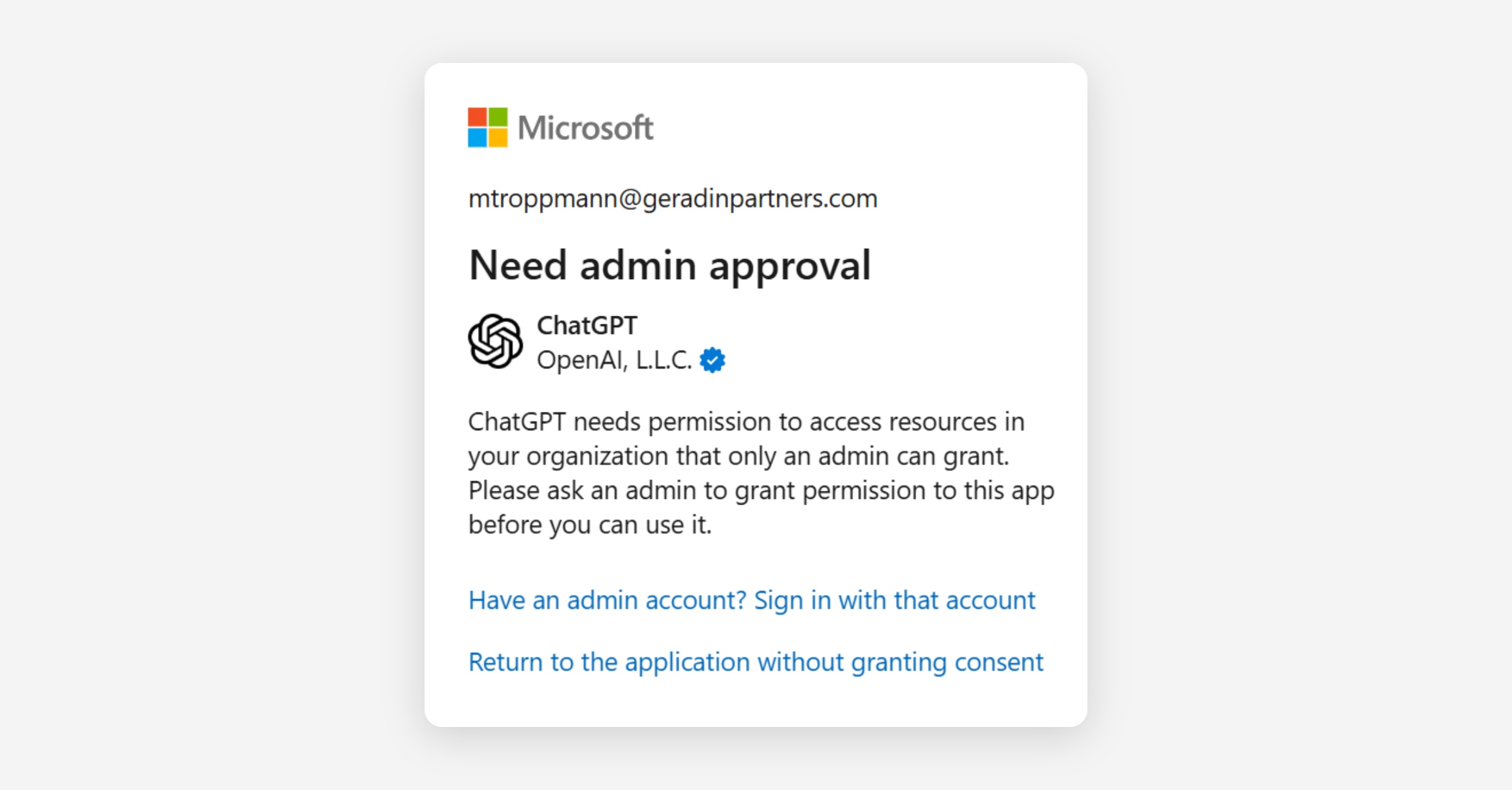
Certain plugins have not yet been authorized by GP’s ChatGPT administrator and are therefore not able to be set up.
When attempting to install such plugins, you may initially encounter the standard plugin display that misleadingly reads ‘Approved by your admin’ and that prompts you to continue with set-up (see top image in pair below). However, when continuing with installation, you will face a message that reads ‘Need admin approval’ or that provides a similar notification, blocking further installation (see bottom image in pair below). This message indicates that the plugin has not been authorized by the administrator.
For administrator approval of a plugin that has not yet been authorized, contact Anne Geradin (GP’s ChatGPT administrator) directly at [email protected]