How to Search through a B2B Contact Database with Claude
Use Claude's connector to the B2B database to perform tailored searches.
To harness the abilities of Claude and of the B2B contact information database that you are using, activate the database’s connector within Claude.
From there, you can create filters — or ask Claude to suggest ideal filters for you — to narrow your search. Specify the desired industry, company size, number of employees, or other relevant identifiers; Claude will then return a list of potential leads and their contact information directly to you in the Chat.
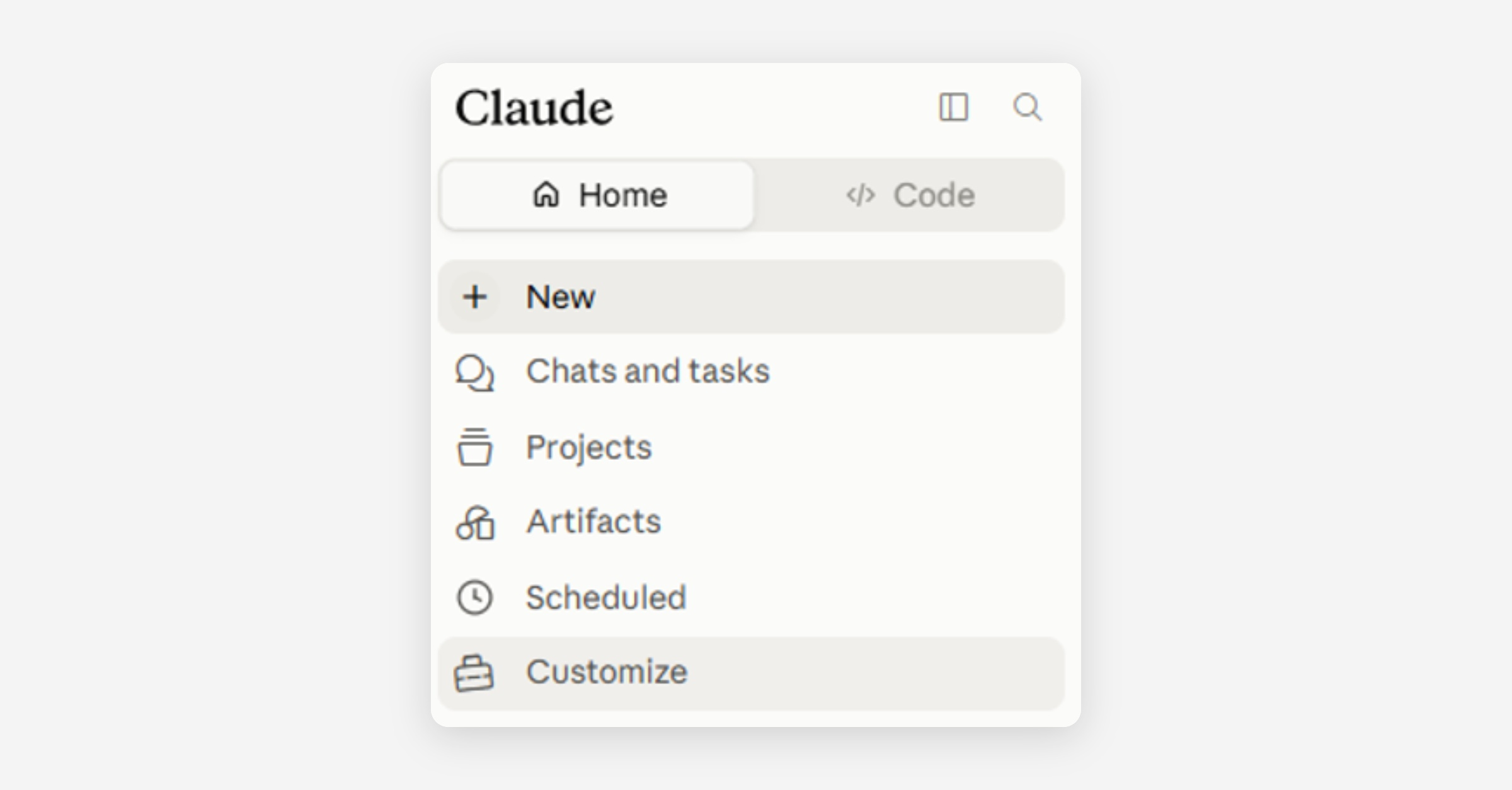
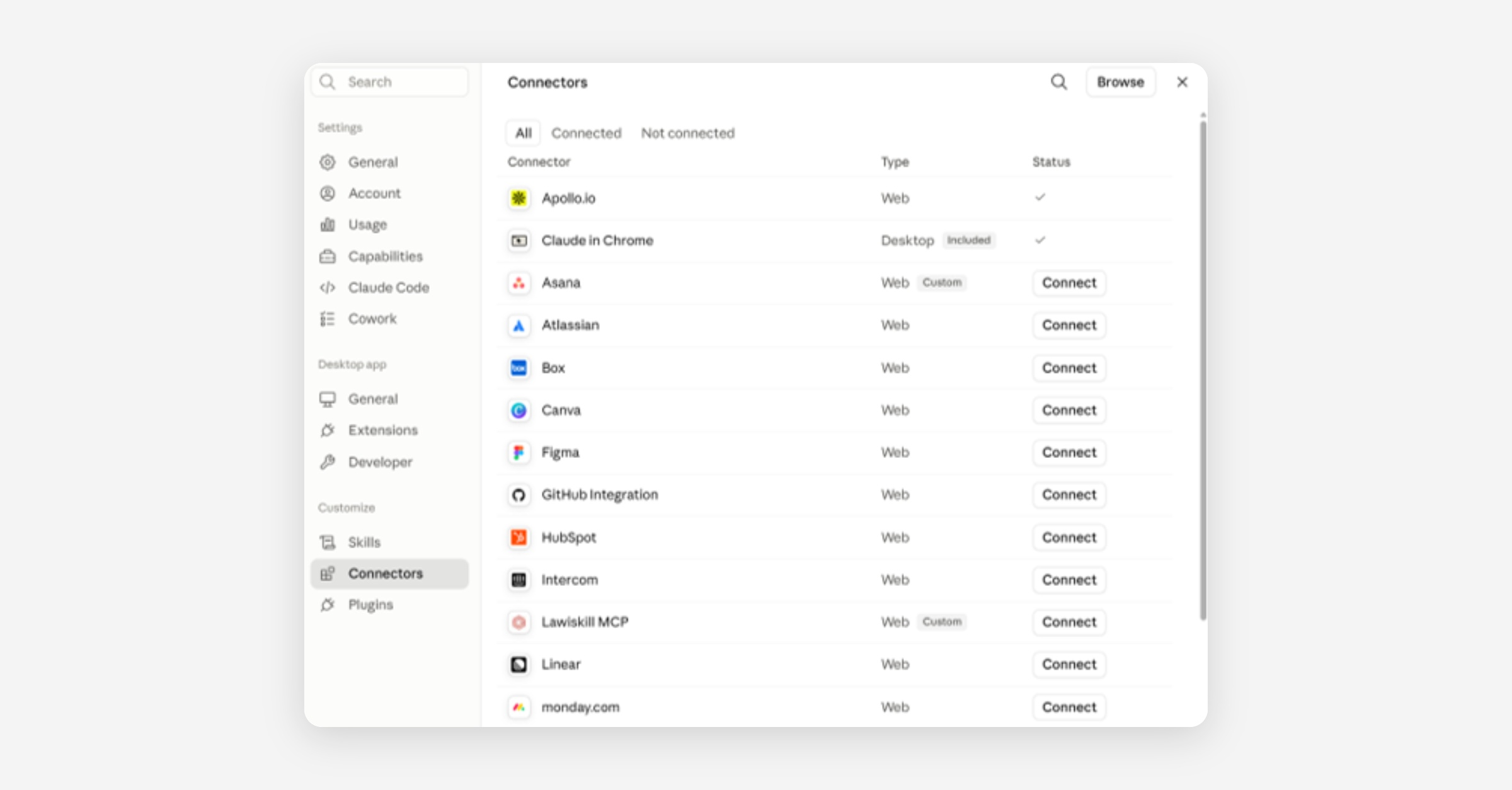
To activate the database’s connector, select ‘Customize’ within the left sidebar in Claude (top image in pair below). Navigate to ‘Connectors’ in the menu that appears, and select ‘Connect’ for the desired B2B contact database’s connector (bottom image in pair below). Proceed with the set up.
To request access to Connectors that have not been enabled by GP’s Claude administrator, select ‘Browse’ in the upper right-hand corner of the Connectors page. Search for the desired connector and click on ‘Request.’
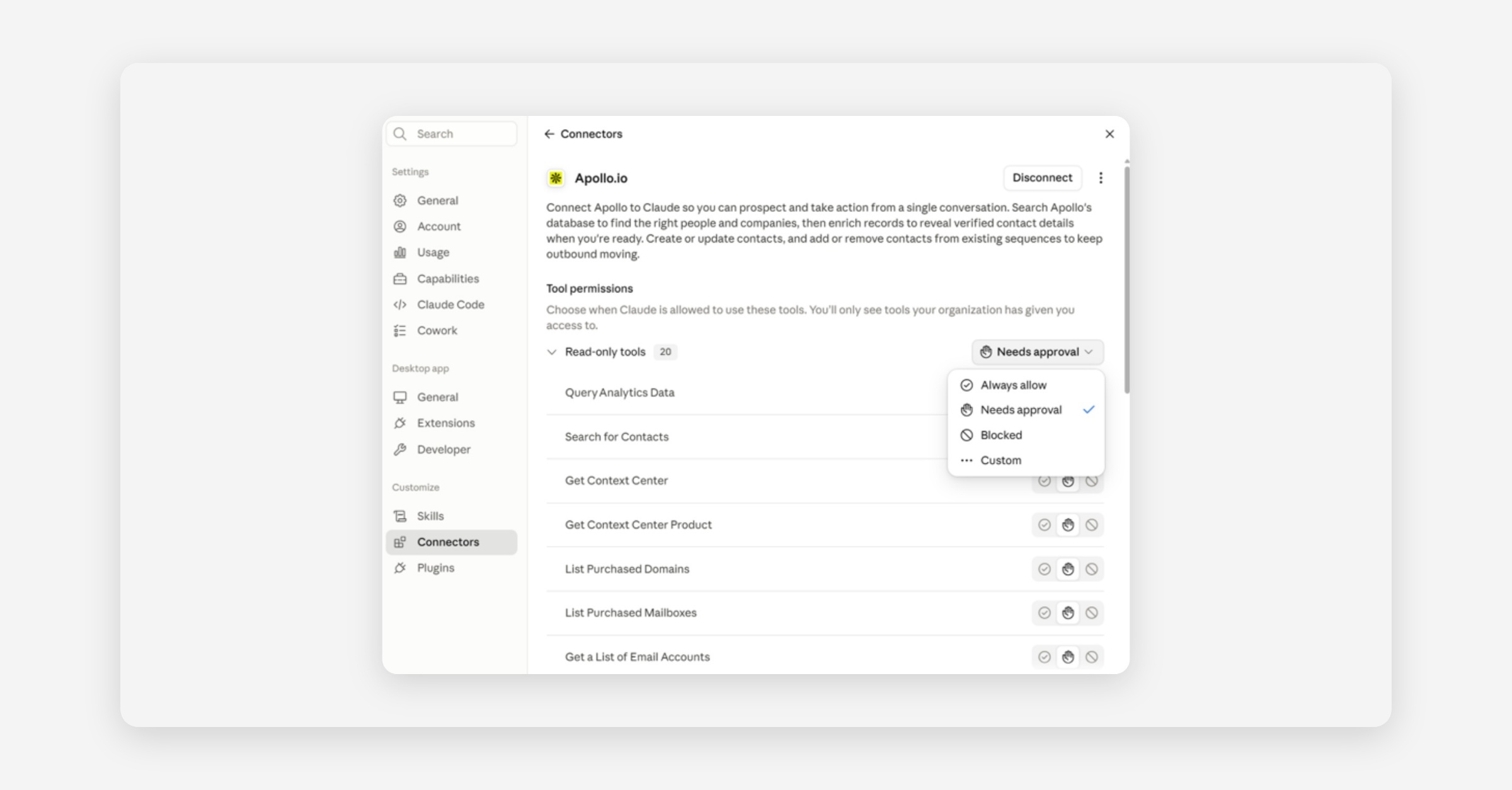
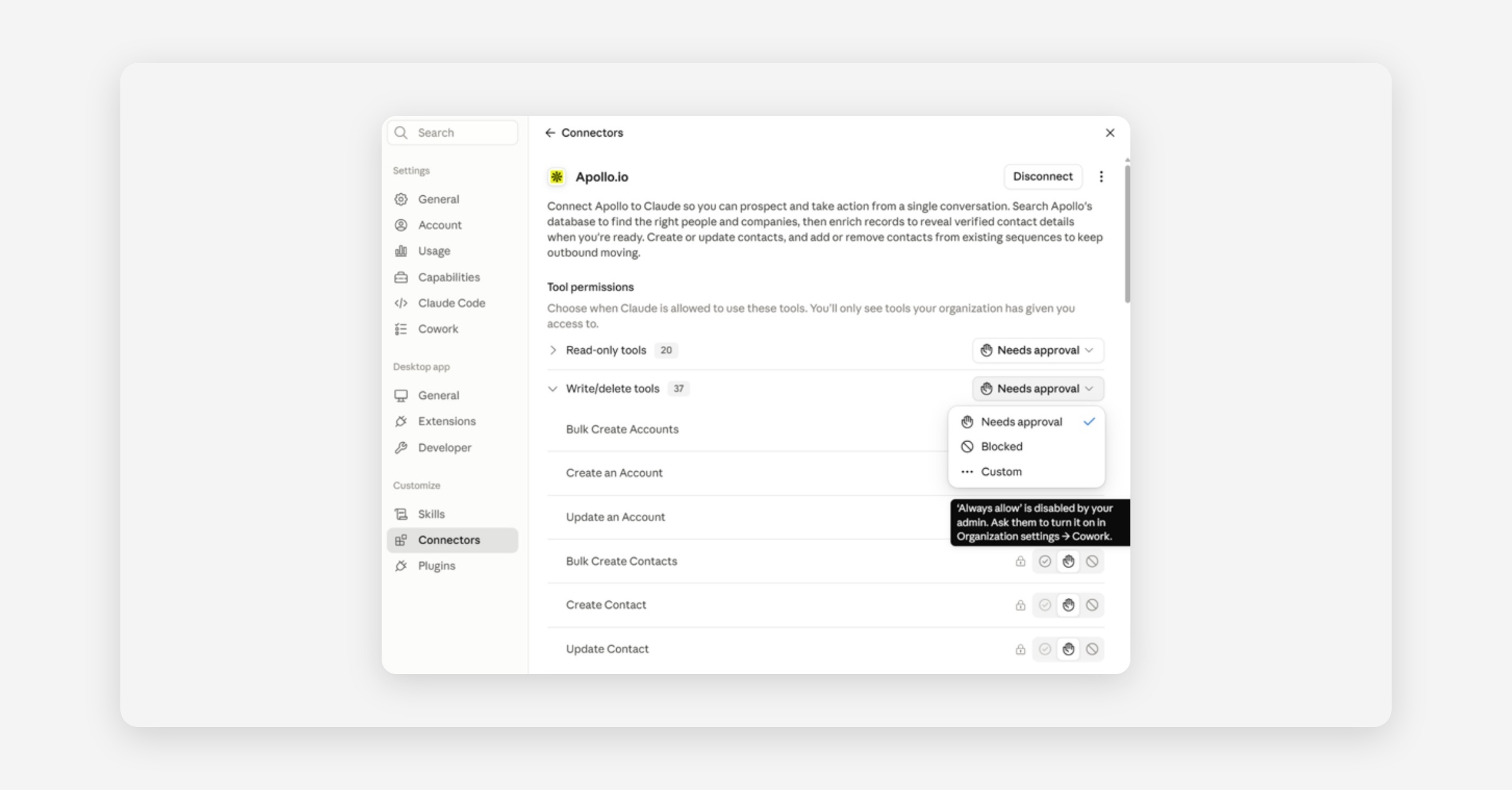
To view the actions that Claude can perform within your connected B2B database, select the appropriate Connector within your list of Connectors. Read through the various tools within the ‘Read-only tools’ set and within the ‘Write/delete tools’ set (the pair of images below are an example of tools for the Apollo B2B database Connector). Adjust permissions as necessary.
To take full advantage of Claude’s lead-generation capabilities, allow Cowork to autonomously research relevant businesses and draft tailored emails. This work can be done at a large scale, extending your reach and saving you hours of email preparation.
Was this helpful?